Assigning Color to Categories
You may find some events in a specific category are different colors, not the single color as was intended or expected.
This is easily changed.
This sometimes happens when you first create a timeline and the default theme is applied, or after several edits to a timeline
(ie. changing category names or modifying events) you may find that you assigned more than one color to the same category.
Fortunately, Timeline Maker Professional provides several options to help you get the category color you want.
- From the Chart Tab
- From the Edit Menu
- Create a New Chart
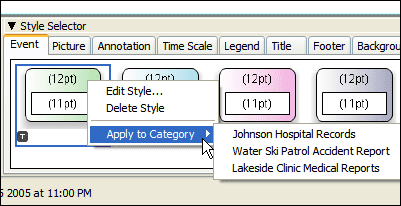
Located beneath your chart is the Style Selector. The Event Tab shows all of the event colors
and styles associated with the theme you have chosen. To apply colors to a category, right click on the event color you want,
select Apply to Category and choose the category you want to change from the list.
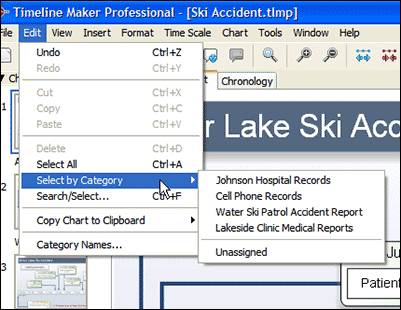
Choose Edit > Select by Category. A list of all the categories you have created for that chart will be shown. Select the category
you wish to change. This will highlight all of the events in that category.
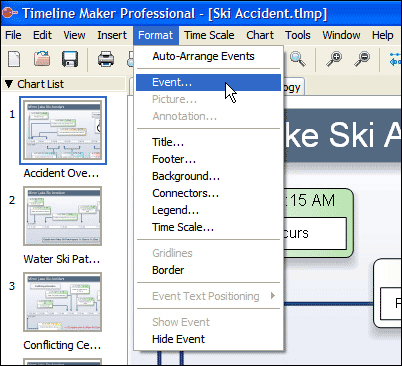
Then choose Format > Event. This will bring up a dialog box that allows you to choose the desired fill color.
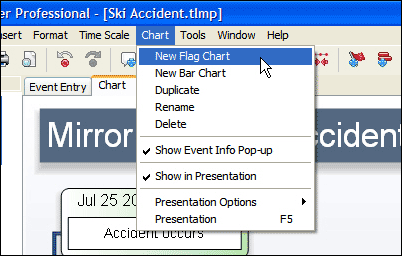
Choosing Chart > New Bar Chart or New Flag Chart will create a new chart from the data you have entered. This is
a great way to start fresh. The program will automatically assign a different color to each category based on the selected theme.
Test Drive this Technique
Test drive this solution using the sample file included with the program.
- Click File > Open > My Timelines > Examples > Ski Accident.
- Then click the Chart Tab.
- Experiment with changing category colors by using one of the options as described above.