Is Your Chart Too Narrow or Wide?
There will be times when you would like to make your chart wider or narrower. Timeline Maker calls this Expanding (widen) or
Compressing (narrow) the time scale.
Using this feature can dramatically change the look as well as the usefulness of a chart by giving more or less room to display
your events. In every case you will notice that the units of time will automatically adjust along your time scale. Other elements,
such as photos, or legend will try to remain relatively where they were until repositioned by the user.
Fortunately, Timeline Maker Professional provides several options to help you adjust the width of your timeline chart.
1. Toolbar buttons
Click the blue arrows to Expand, the red arrows to Compress.
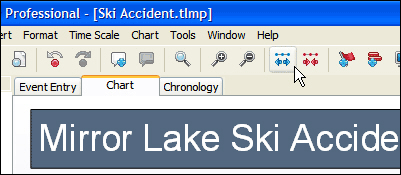
2. Use arrow keys on keyboard
Click on the timescale in the chart. Next, use your left or right arrow keys in the keyboard. You can hold down the key to repeat
the command.
3. Time scale menu option
Select Time Scale in the menu bar (next to Format). Click Expand or Compress.
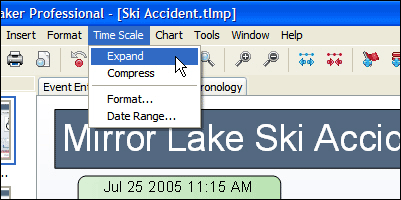
TIP: To Expand or Compress in smaller increments, hold the SHIFT key down while clicking.
Test Drive this Technique
Test drive this solution using the sample file included with the program.
- Click File > Open > My Timelines > Examples > Ski Accident.
- Then click on chart number 4 in the Chart List (left side bar).
- View this chart by clicking on the Chart Tab.
- Zoom out two or three times to best see the changes.
- Try the solutions above.


